
At the end of December 2026 Microsoft will turn off basic authentication for SMTP AUTH in existing Microsoft 365 tenants. Any device or app that signs in to smtp.office365.com with a username and password to send email will stop sending. It will stay that way until someone changes it or turns the setting back on.
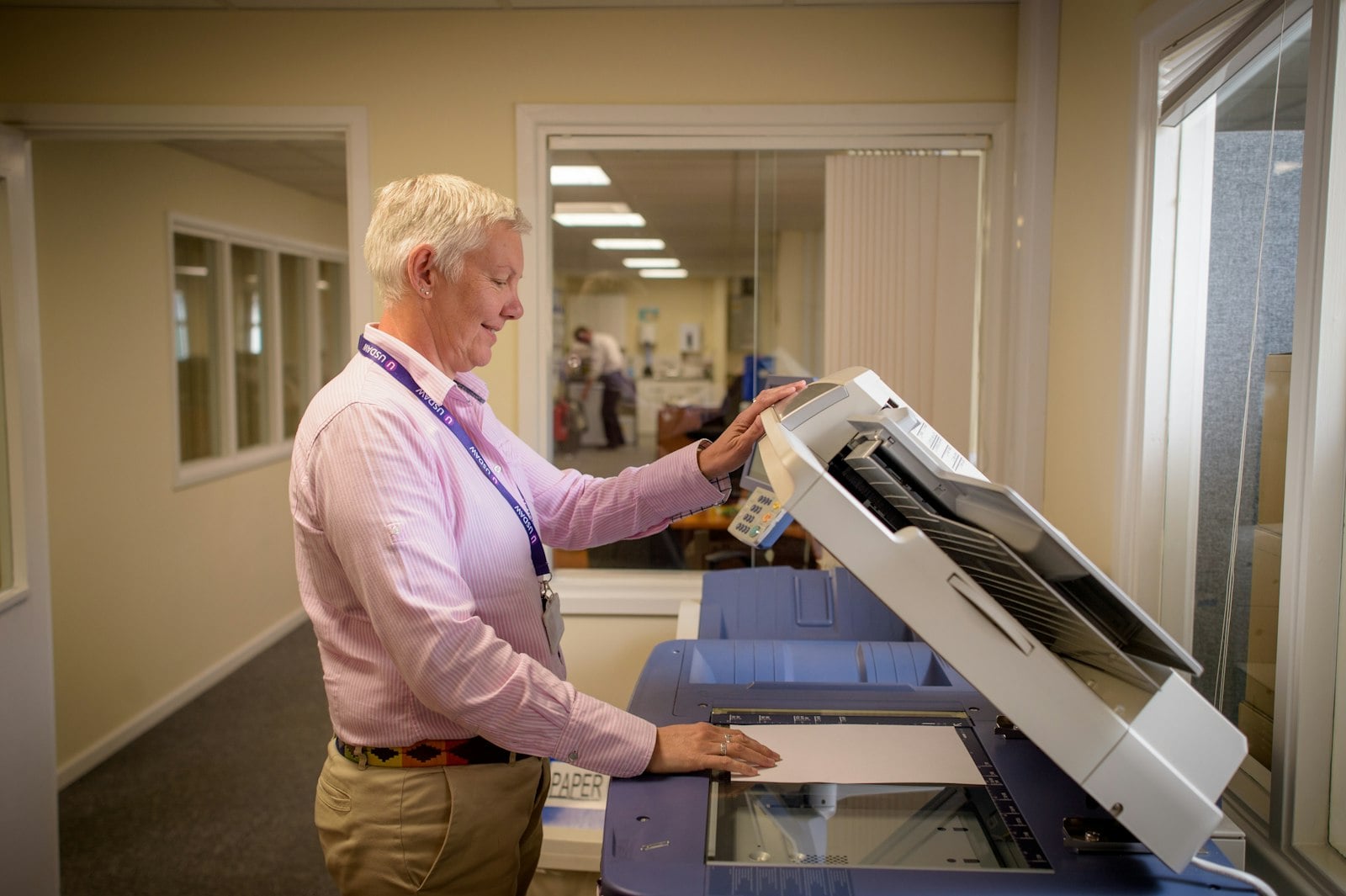
In most offices that means the photocopier’s scan to email, plus a handful of apps and devices that send invoices, payslips and alerts. Staff email in Outlook and on phones keeps working.
Not sure what in your office still uses it? We can run the Microsoft 365 report, list what still uses basic auth and fix each one before the change. Get in touch.
The timeline
Microsoft confirmed the timeline in January 2026, after pausing an earlier plan to remove basic auth from SMTP AUTH in March and April 2026.
| When | What happens |
|---|---|
| Now to December 2026 | No change. Basic auth still works for SMTP AUTH. |
| End of December 2026 | Basic auth is turned off by default in existing tenants. An admin can turn it back on. |
| Tenants created after December 2026 | Basic auth is off by default and OAuth is the supported way to sign in. |
| Second half of 2027 | Microsoft will announce the date it removes basic auth from SMTP AUTH for good. |
Turning it back on buys time until that final date. Every device on basic auth will have to move eventually. The other Exchange Online dates for this year and next, including the retirement of Exchange Web Services, are on our Exchange Online page.
What SMTP AUTH is
SMTP AUTH is how a device or app signs in to Microsoft 365 to send email. It connects to smtp.office365.com on port 587, signs in as a licensed mailbox and sends from that address. Microsoft calls it client submission.
With basic auth, the device signs in with a username and password saved in its settings. With modern auth (OAuth), it signs in once through Microsoft and then uses a token, so the device never holds the password.
Microsoft started switching off basic auth for ActiveSync, POP, IMAP and Exchange Web Services in October 2022. SMTP AUTH was left out of that change, and the December default is the first step in removing it.
What usually stops working
The devices and apps at risk are the ones that send email on their own, using an address and password typed into their settings. Common examples:
- photocopiers and scanners that scan to email
- accounting, practice management and payroll software that emails invoices, statements and payslips from your server or a PC
- website contact forms and plugins that send through a Microsoft 365 mailbox
- network storage, UPS units, firewalls, alarm panels and cameras that email alerts
- scripts and scheduled tasks written years ago to send reports
Cloud accounting platforms usually send email from their own servers, so they are not affected unless someone set them up to send through your mailbox.
When a device fails, the scan or invoice never arrives and the device logs a sign in error.
How to find out what uses it
Microsoft 365 already records which accounts send through SMTP AUTH. There are three places to look.
- The SMTP AUTH clients report. In the Exchange admin centre, go to Reports, then Mail flow. It lists each sending address, how many messages it sent and whether it signed in with basic auth (shown as TlsAuthLogin) or modern auth (XOAUTH2). It covers the last 7 days by default and up to 90 days with a custom range.
- The sign in logs. In Microsoft Entra, filter the sign in logs by the client app Authenticated SMTP to see which accounts sign in this way and from which IP addresses.
- The office itself. Check the copier, the scanners and any software that sends email on its own. Some send only once a month, so a 7 day report can miss them.
If your tenant uses Microsoft’s security defaults, basic auth for SMTP AUTH is already blocked and December changes nothing for you. Anything that sends email from a device today already uses modern auth, a relay connector or direct send.
Microsoft 365 SMTP settings at a glance
A device or app can send email through Microsoft 365 in three ways. These are the settings for each, from Microsoft’s guide to setting up printers, scanners and apps.
| Method | Server and port | Signs in | Sends outside your business |
|---|---|---|---|
| SMTP AUTH (client submission) | smtp.office365.com, port 587 with STARTTLS | Yes, as a licensed mailbox | Yes |
| SMTP relay | Your MX endpoint, port 25. For example yourdomain-com. |
No. Microsoft 365 checks your static IP address or a certificate | Yes |
| Direct send | Your MX endpoint, port 25 | No | No, only to your own mailboxes |
SMTP AUTH needs TLS 1.2 or later and allows 30 messages a minute and 10,000 recipients a day for each mailbox. Port 465 is not supported.
Your options before December
1. Move the device or app to modern auth
Many newer copiers, scanners and business apps can sign in to Microsoft 365 with OAuth. The setting is often called Microsoft 365, Exchange Online or OAuth 2.0, and some older models get it in a firmware update. Use this wherever it is available, because no password is stored on the device.
2. Send through an SMTP relay connector
For a device that cannot use OAuth, set up a connector in Exchange Online that accepts email from your office’s static public IP address. The device sends to your MX endpoint on port 25 with no username or password, and it can still send to people outside your business. Microsoft does not support dynamic IP addresses for this, and the IP needs to be added to your SPF record.
3. Use direct send for internal email only
Direct send also uses your MX endpoint on port 25 with no sign in, but it only delivers to mailboxes in your own business. It can work for scan to email that only goes to staff. Microsoft describes it as an option for advanced customers. It is also working on a setting to turn direct send off by default, as attackers have used it to send fake internal email. We would treat it as a last resort.
4. Use a sending service for software that emails customers
Software that sends invoices and statements to customers can move to an email sending service, such as Microsoft’s Azure Communication Services or the software vendor’s own service. No mailbox password then needs to be stored in that software.
5. Turn basic auth back on as a stopgap
An admin can turn basic auth for SMTP AUTH back on after December. Keep it for a device you cannot fix in time. Give that device its own mailbox with a long unique password, then set a date to remove it. Multi-factor authentication cannot protect a basic auth sign in, so anyone who gets that password can send email as that mailbox.
What we recommend
Start this month. Run the SMTP AUTH clients report, list every device and app on basic auth, then work through them in this order:
- Switch everything that supports OAuth.
- Move copiers and scanners that do not to an SMTP relay connector.
- Move software that emails customers to a sending service.
- Turn basic auth back on only for what is left, with a date to finish.
Send a test from each device afterwards and keep the list. You will need it again when Microsoft announces the final removal date in 2027. If you would like help, our Microsoft 365 team can run the report and work through the list with you.
Questions to ask your IT provider
If someone else looks after your Microsoft 365, ask them:
- Have you run the SMTP AUTH clients report for our tenant?
- Which of our devices and apps still use basic auth?
- Is the plan for each one OAuth, a relay connector or a stopgap?
- Who will test scan to email after the change?
Clear answers mean it is in hand. If nobody has looked yet, there is still time before the end of December.
Common questions
Will Outlook stop working?
No. Outlook on computers and phones signs in with modern auth. The change affects devices and apps that send email through SMTP AUTH with a saved password.
Does it apply to every Microsoft 365 plan?
Yes. It applies to every existing Exchange Online tenant, whatever the plan.
We already use a relay connector. Do we need to do anything?
No. SMTP relay and direct send do not sign in, so this change does not affect them. Check that the IP address in the connector is still your office’s address.
Can we keep basic auth after December?
For now, yes. An admin can turn it back on. Microsoft will announce a final removal date in the second half of 2027, and after that date it will not be available.
Sources
- Microsoft Exchange Team blog, updated SMTP AUTH basic authentication timeline (January 2026)
- Microsoft Learn, setting up a multifunction device or application to send email (updated September 2026)
- Microsoft Learn, turning SMTP AUTH on or off in Exchange Online (updated September 2026)
- Microsoft Learn, SMTP AUTH clients report